
Where the Settings Live
Customization happens in the waiting area before the first round. Recorded lobbies show a panel that displays the round count with minus and plus buttons, next to a count of enabled minigames. This is the same area where players gather on the ready platform.
The Steam page confirms that specific minigames can be disabled, and that you can customize the available games inside a lobby. Launch coverage also describes configurable online lobbies with private and public sessions. The publisher's launch announcement adds that matches include randomized events.
Step by Step: Build Your Minigame Pool
The host is the one who sets up the session. In public demo lobbies, the developer reserved round count and mode selection for the host. Other players should agree on the pool before the host locks it in.
- The host finds the pre-match panel that shows the round count and enabled minigames.
- Choose the minigames your group wants in the rotation and disable the rest.
- Check the enabled-minigame count before anyone readies up.
- Use the separate round-count setting for a shorter or longer session.
- Everyone steps onto the ready platform to start the countdown.
Setting the Round Count
Round count and minigame selection are separate controls. The round count decides how many minigames you play in the match, while the minigame list decides which ones can come up. A short session suits a quick game, and a longer one gives more chances to recover from bad bets.
Longer matches also change the star economy. Because the cost of a star rises as the match progresses, more rounds means more time for prices to climb. Our how to buy stars guide explains why that matters.
Who Can Change the Settings
The developer's Demo Patch v1.02 made round count and mode selection host-only in public demo lobbies. The same patch added a start timer to public lobbies. That stops anyone in a public lobby from changing the session at the last second.
In a private lobby with friends, the host is still the person running the panel. If someone wants a specific round added, ask the host before ready-up rather than mid-match. That keeps the countdown from being held up while settings change.
Pool Ideas for Different Groups
The Steam page gives sniper duels as an example of a focused setup, where a group plays only one style of round. Narrow pools like this suit groups who already know what they enjoy. Broader pools suit new groups who want to discover favorites.
- New players: favor easy-to-read rounds such as Sumo, Mash Battle and Hot Potato.
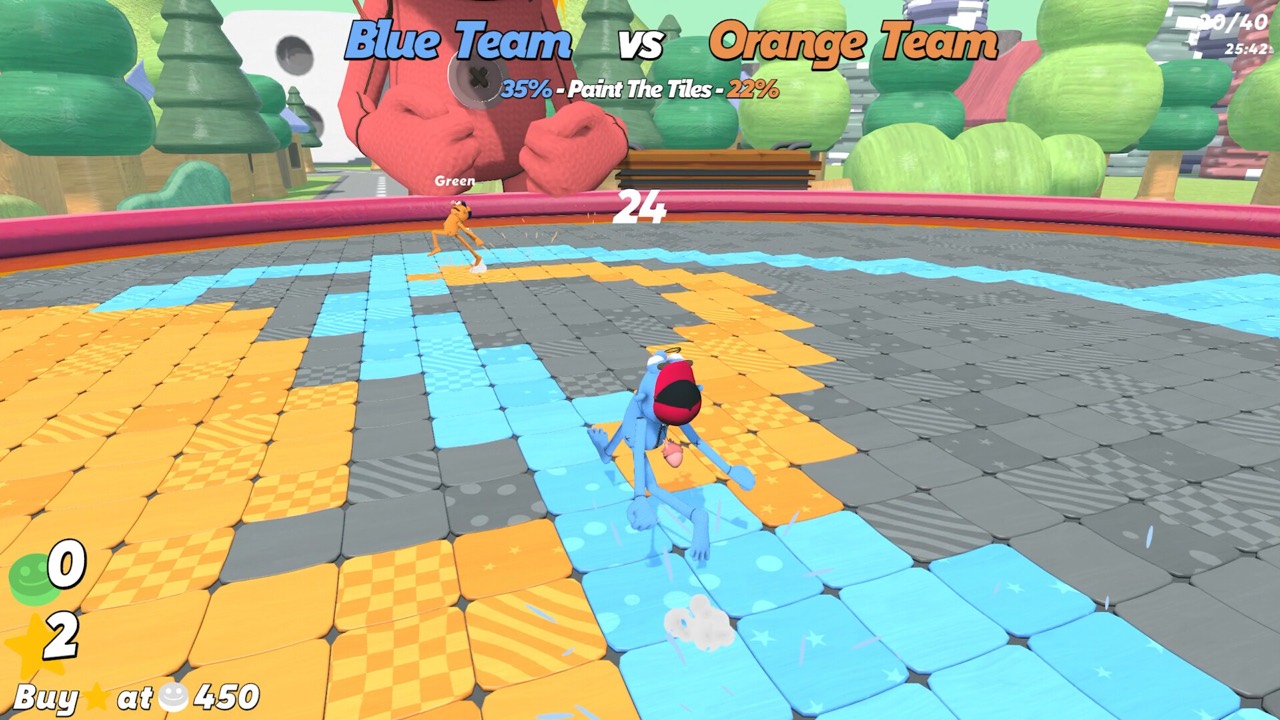
- Competitive groups: add skill rounds such as Race, Soccer and Paint The Tiles.
- Chaotic nights: leave chance rounds such as Chip Flip in the mix.
- Focused nights: run a narrow pool, such as sniper duels only.
Checking Your Setup Before Ready-Up
In one recorded session, the lobby panel showed 20 enabled minigames. That number reflects that group's choices, not the full game. Check your own enabled count so nobody is surprised by a round they thought was disabled.
Once everyone is on the ready platform, the countdown starts and the match begins. In filmed lobbies, the ready counter climbs as each player steps on. The game starts once the whole group is in.
Why Your Pool Affects Betting
Every round begins with a wager, so the pool you choose shapes how informed those bets can be. A pool full of skill rounds lets players back the friend who is strong at a particular game. A pool with more chance rounds makes betting closer to a gamble.
If your group wants smarter bets, keep chance rounds to a minimum. Our minigame tier list groups rounds by how well they reward informed betting. The minigames list names every round we have confirmed.
Public Lobby Rules
Public lobbies work a little differently from private ones. In the demo, Demo Patch v1.02 limited round count and mode selection to the host and added a start timer. That meant other players in a public lobby could not change the session.
If you join someone else's public lobby, expect the host's pool and round count. If you want full control, host a private lobby for your own group. Our how to play with friends guide compares the two.
A Sample Setup for First-Timers
For a group that has never played, keep the pool readable and the session short. Readable rounds let everyone learn the betting loop without also learning complex rules. A shorter round count also limits how high star prices climb.
- Enable Sumo, Mash Battle and Hot Potato, which are easy to follow.
- Add one or two team rounds, such as Paint The Tiles, so everyone sees team betting.
- Keep Chip Flip in if you want one pure-chance round.
- Lower the round count for the first session, then raise it once everyone is comfortable.
Customizing Your Character Too
The minigame panel is not the only thing to set up in the lobby. Recorded lobbies also show Customize and Change Color labels for your character. That is where appearance options live.
Cosmetics are unlocked by spending stars earned in matches. Give everyone a moment to change their look before the host starts the countdown. Our how to unlock cosmetics guide covers what is available.
Frequently Asked Questions
Can you choose which minigames are played?
Yes. The host can enable or disable specific minigames in the lobby before the match starts.
Who can change the minigame settings?
The host. In public demo lobbies, Demo Patch v1.02 limited round count and mode selection to the host.
Can you change the number of rounds?
Yes. A separate round-count control with minus and plus buttons appears on the lobby panel.
Do disabled minigames ever appear?
The settings are meant to remove them from the rotation. Check the enabled count on the panel before ready-up.
Official Trailer
Sources and Further Reading
- Blast Furnace Games — WE'RE ALL IN! on Steam
- Blast Furnace Games — Demo Patch v1.02 (Oct 17, 2026)
- Black Lantern Collective — launch announcement (Nov 20, 2026)
- KongMNG Game Wire — WE'RE ALL IN! launch report (Nov 20, 2026)
- InfernoMS — WE'RE ALL IN! four-player session (YouTube, Nov 20, 2026)
- CaRtOoNz — WE'RE ALL IN! session (YouTube, Nov 12, 2026)